How to Configure an External Domain on DigitalDruid.Net Hosting
When you subscribe the DigitalDruid.Net hosting service, besides the use of hoteldruid, you will have at your
disposal a webspace where you can host your own site and the webpages created with hoteldruid. In this
tutorial we will see how to make this site appear when you type a domain name registered with
godaddy.com, but the procedure should be similar with any other
internet domain registrar.
Immediately after finishing the hosting activation the webspace will be accessible from the
http://lodgeXX.journeylodge.com address (replace XX with your hosting number), but we can change this address from inside
the DigitalDruid.net account management:
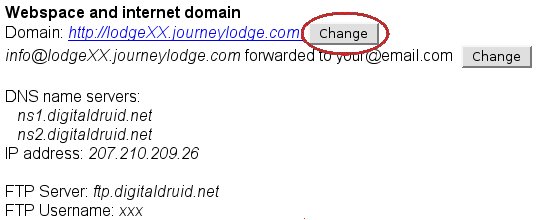
You can change the default domain with another journeylodge.com subdomain (for example myname.journeylodge.com) not
yet taken by other hosting subscribers. In this case there's no need to register your own domain.
To have your own domain like mydomain.com you'll have to register it first, on godaddy.com the price is around 9$.
This is the only extra expense, besides the DigitalDruid.Net hosting service, that you'll have to pay to get your site
on-line. During the godaddy registration you will be offered various special offers that you can safely ignore if you're
not interested. At the end of the registration procedure you'll have created also a godaddy.com account, access it to
configure the domain you just purchased. Once you're inside you'll have to follow these steps:
- Select "Domains" --> "Domain Management" from the upper bar.
- A page with the list of your domains will open, click on the domain just registered.
- Inside the "Nameservers" section click on "Set nameservers" link.
- Now move the dot on "I have specific nameservers" and insert in the text boxes of the first 2 nameservers the values "ns1.digitaldruid.net" and "ns2.digitaldruid.net" as follows:
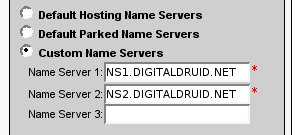
- Once the nameservers are inserted click on "save changes" or "OK".
At this point the name servers of the domain have been changed, but you'll have to wait about 24 hours before the
change propagates on the internet. After this time has passed, if you have set up mydomain.com also in the DigitalDruid.Net
account, you'll be able to access your site typing mydomain.com or www.mydomain.com in your browser.
Some domain registrars offer, unlike godaddy.com, also the DNS management. In this case it will be enough to set
up 178.79.141.246 as the IP address for mydomain.com and www.mydomain.com in the DNS management of your domain
registrar.
To reach your site with a secure ssl connection you'll be able to activate for free an ssl certificate by LET'S
ENCRYPT. Once the configured domain opens correctly, an "Activate https" button will appear next to the
"Change" button used previously to change the domain name, just follow it to also activate the secure addresses like
https://mydomain.com and https://www.mydomain.com. You can also use the alternative internet addresses
https://www.digitaldruid.net/hosted/hXX/pub/ and https://myname.journeylodge.com/ that will remain always valid besides
the domain configured in the DigitalDruid.Net account. For example these addresses that begin with https can be useful
for the links that point to the instant booking page, to protect the data sent by your customers
Once the domain name is set up you can upload the files of your site with any FTP client, configuring the connection
with data sent to you in the hosting activation email.
An email address like info@mydomain.com ("info" can be changed with another name from the DigitalDruid.Net account)
will be also available from where all mails sent to it will be forwarded to the email address that you used in the
DigitalDruid.Net hosting activation. Another option, always from the DigitalDruid.net account management, is the
possibility to change the MX dns records so that an external email service can be used. For example with the service
"Google Apps", offered freely by Google in its standard version, it's possible to create an account on gmail with
addresses like info@mydomain.com.